
Problem:
Test filters - Message box test
Usage:
There is a need to check if a filter applies to specified users or computers.
Possible Resolution(s):
Step 1 - define a filter
This step is only shown to better explain the basics of how the filters work. If you have already defined the filters and you know how they function you can precede to the next step.
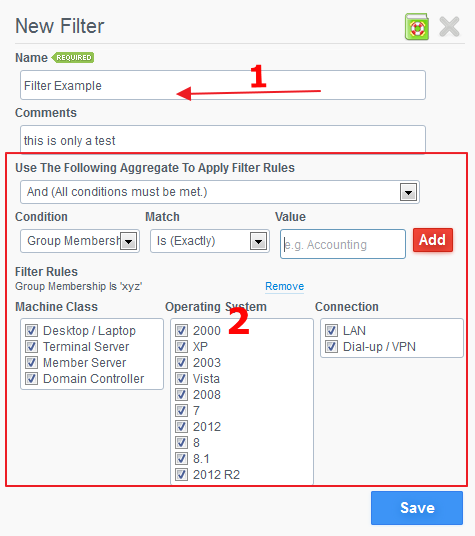
The below image shows an example of a newly created filter.
Number 1 is shows a name of a filter, and the number 2 shows variables that make up the filter rule.
2. Step 2 - Test the filter
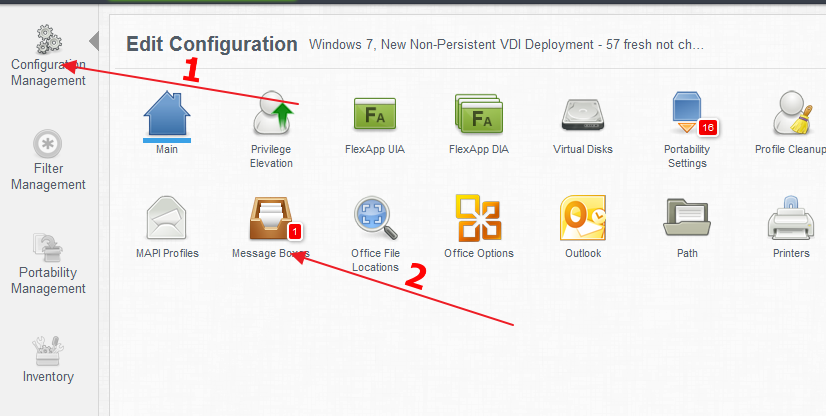
Open the Message box setup page by clicking on "Configuration Management" (1) and "Message Boxes" (2).
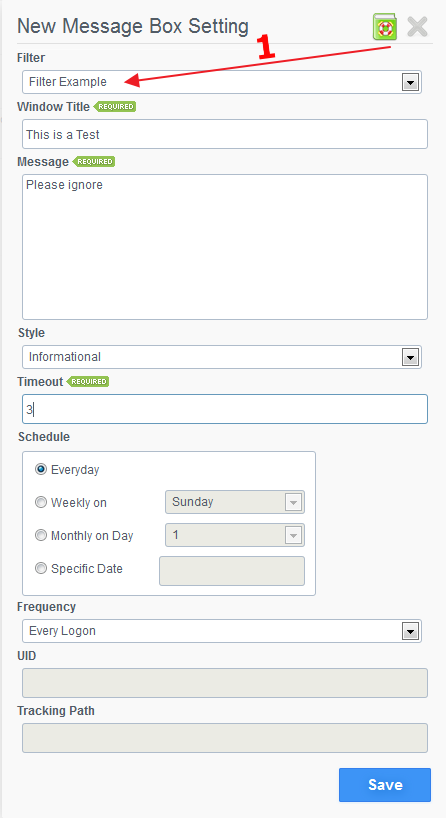
In a previous step the filter was named "Filter Example" (1). Therefore, in the below case, the Message box will appear for "3" seconds in an "informational" Style showing a window titled "This is a test" with a message of "Please Ignore"
Step 3) Result:
If the user logs in to the machine and it is determined that its part of the "xyz" security group. Message box with "Please Ignore" message will pop up.
Product: ProfileUnity
Product Version: 5.5 and up